

MCP Integration
You can connect AI assistants and developer tools to Belong using Model Context Protocol (MCP).
This allows you to:
- Ask natural-language questions about your events or places
- Interact with your token collections and schedules
- Use Belong's API without writing custom integration code
Belong has two MCP surfaces:
| Use case | Endpoint | Auth |
|---|---|---|
| Public AI assistants and external connectors | https://join.belong.net/functions/v1/belong-agent-mcp/mcp | OAuth 2.1 with email-code sign-in |
| Trusted backend or first-party integrations | https://api.belong.net/mcp | x-api-key |
Use the public assistant MCP for ChatGPT-style or OAuth-capable remote MCP clients. Use the API-key MCP only from trusted developer tooling, servers, or first-party integrations that already hold a Belong API key.
Getting Started
Belong provides ready-to-use MCP servers. Choose the endpoint that matches your integration.
Public Assistant MCP
This is the recommended endpoint for external assistants:
| Environment | MCP Server URL |
|---|---|
| Production | https://join.belong.net/functions/v1/belong-agent-mcp/mcp |
The public assistant MCP uses OAuth 2.1, PKCE, scoped permissions, and email-code sign-in. Protected actions such as organizer updates, venue operations, and signing-link preparation require the user to connect their Belong account. Sensitive wallet or payment operations return a Belong confirmation link rather than executing directly in chat.
Backend API-Key MCP
The backend MCP remains available for trusted integrations:
| Environment | MCP Server URL |
|---|---|
| Production | https://api.belong.net/mcp |
This endpoint uses the same x-api-key header as the Belong REST API. Follow Getting an API Key to create one for your environment.
LLM Manifest
MCP-capable clients that support discovery can bootstrap backend API-key tooling from the plain-text manifest at https://api.belong.net/api/v3/llms.txt. OAuth-capable public assistants should use the public assistant MCP endpoint above and its OAuth discovery metadata.
How to Connect with AI Tools
MCP clients commonly use JSON configuration like the examples below.
text/event-stream when the client advertises SSE support.Public Assistant MCP
For OAuth-capable clients that support remote MCP servers:
{
  "mcpServers": {
    "belong": {
      "url": "https://join.belong.net/functions/v1/belong-agent-mcp/mcp"
    }
  }
}
Backend API-Key MCP
For trusted clients or servers that use a Belong API key:
{
  "mcpServers": {
    "belong-api": {
      "url": "https://api.belong.net/mcp",
      "headers": {
        "x-api-key": "YOUR_API_KEY_HERE"
      }
    }
  }
}
For MCP clients that only support local (stdio) servers, use a remote proxy only with the backend API-key MCP:
{
  "mcpServers": {
    "belong-api": {
      "command": "npx",
      "args": [
        "mcp-remote",
        "https://api.belong.net/mcp",
        "--header",
        "x-api-key: ${AUTH_TOKEN}"
      ],
      "env": {
        "AUTH_TOKEN": "YOUR_API_KEY_HERE"
      }
    }
  }
}
This allows local-only clients to communicate with Belong's backend MCP through a local proxy.
YOUR_API_KEY_HERE with your actual Belong API key. Keep API keys server-side or in trusted developer tooling only; do not paste API keys into public assistant chats.How to Connect
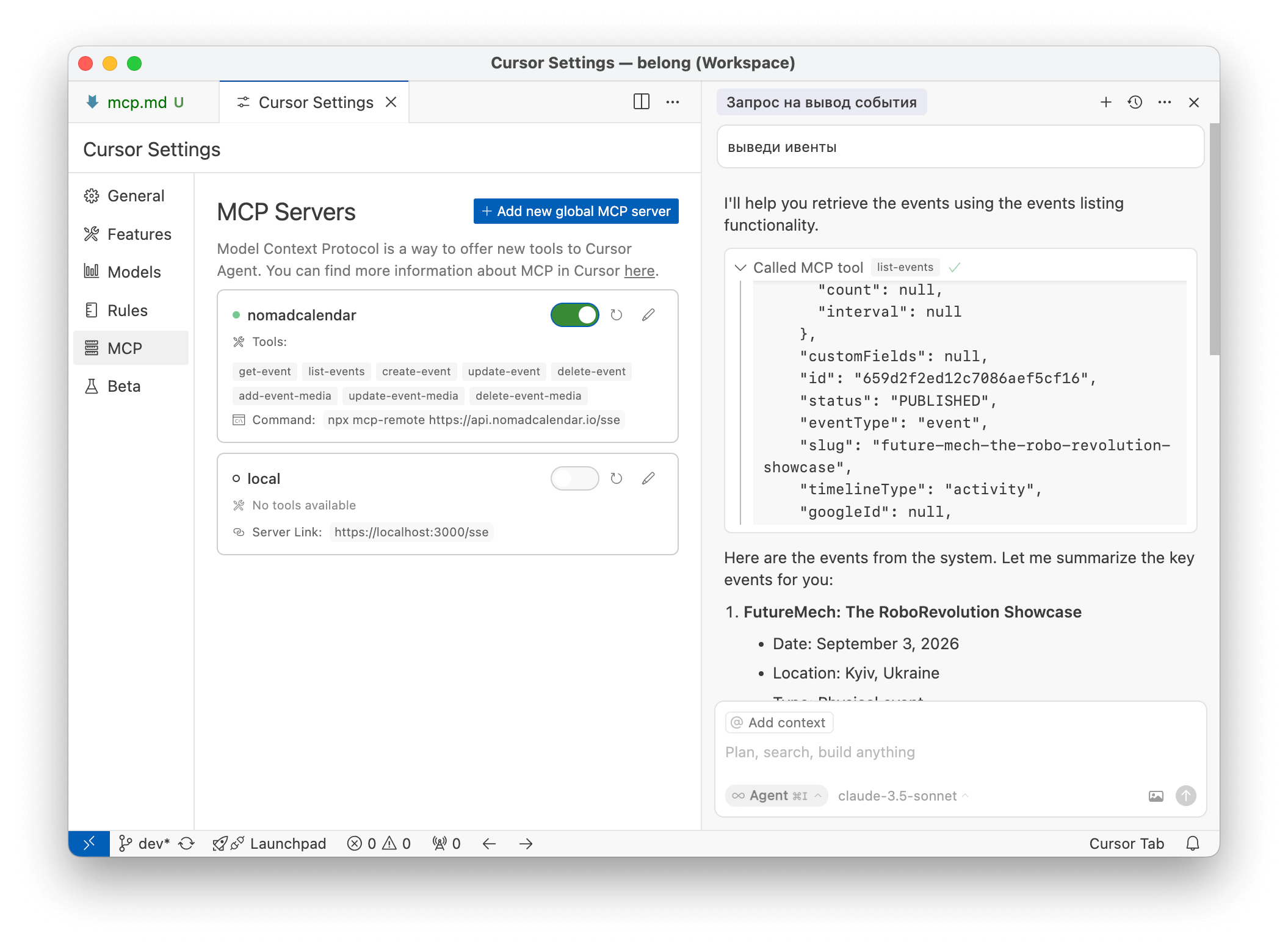
Cursor
- Open Cursor
- Go to
Cursor Settings→MCP→Add new global MCP server - Paste the public assistant MCP or backend API-key MCP configuration above, depending on the auth model your workspace supports
Claude Desktop
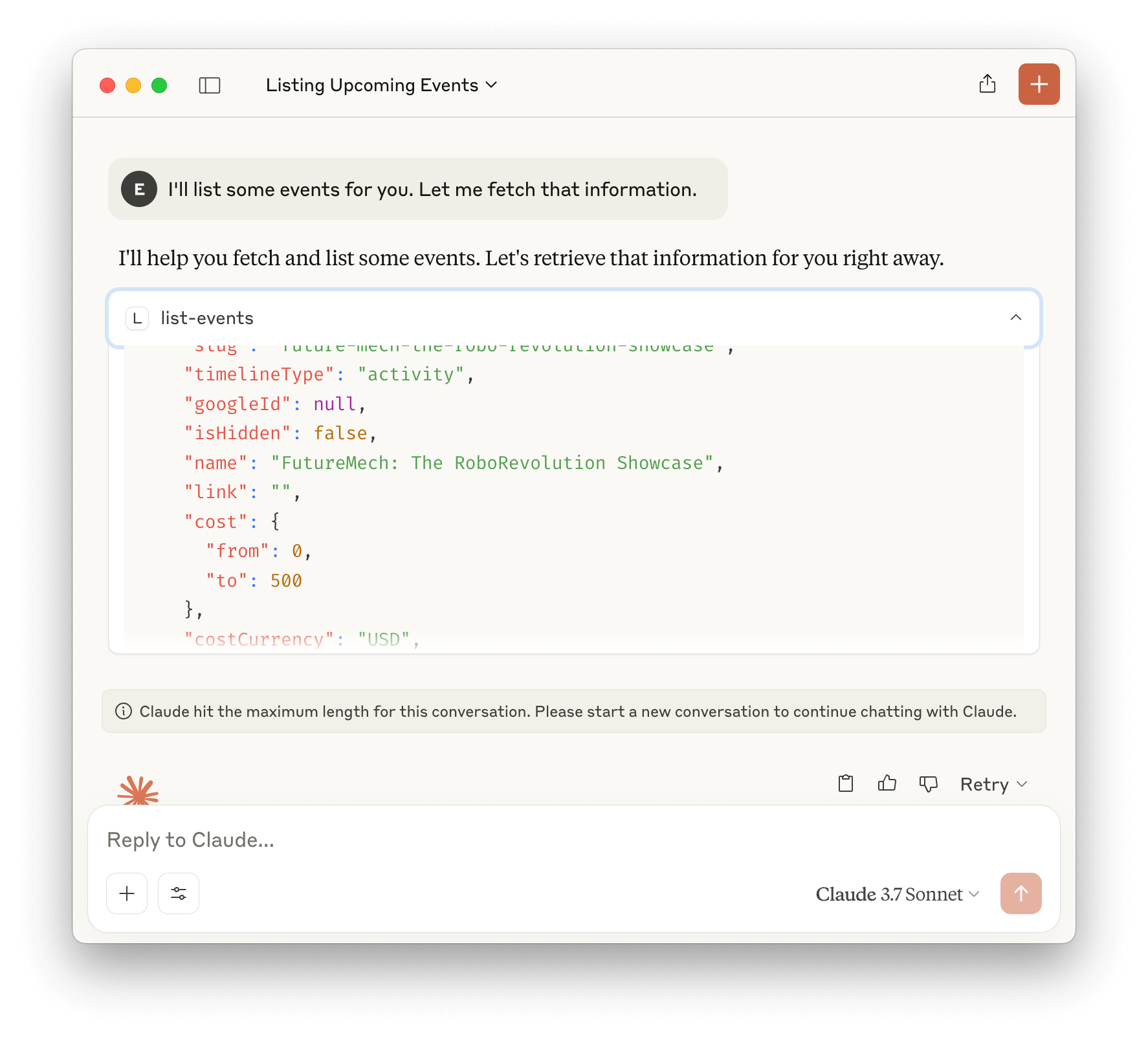
- Download and install Claude Desktop
- Open the configuration file:
- macOS:
~/Library/Application Support/Claude/claude_desktop_config.json - Windows:
%APPDATA%\Claude\claude_desktop_config.json
- macOS:
- Add the public assistant MCP or backend API-key MCP configuration above, depending on the auth model your client supports
Postman
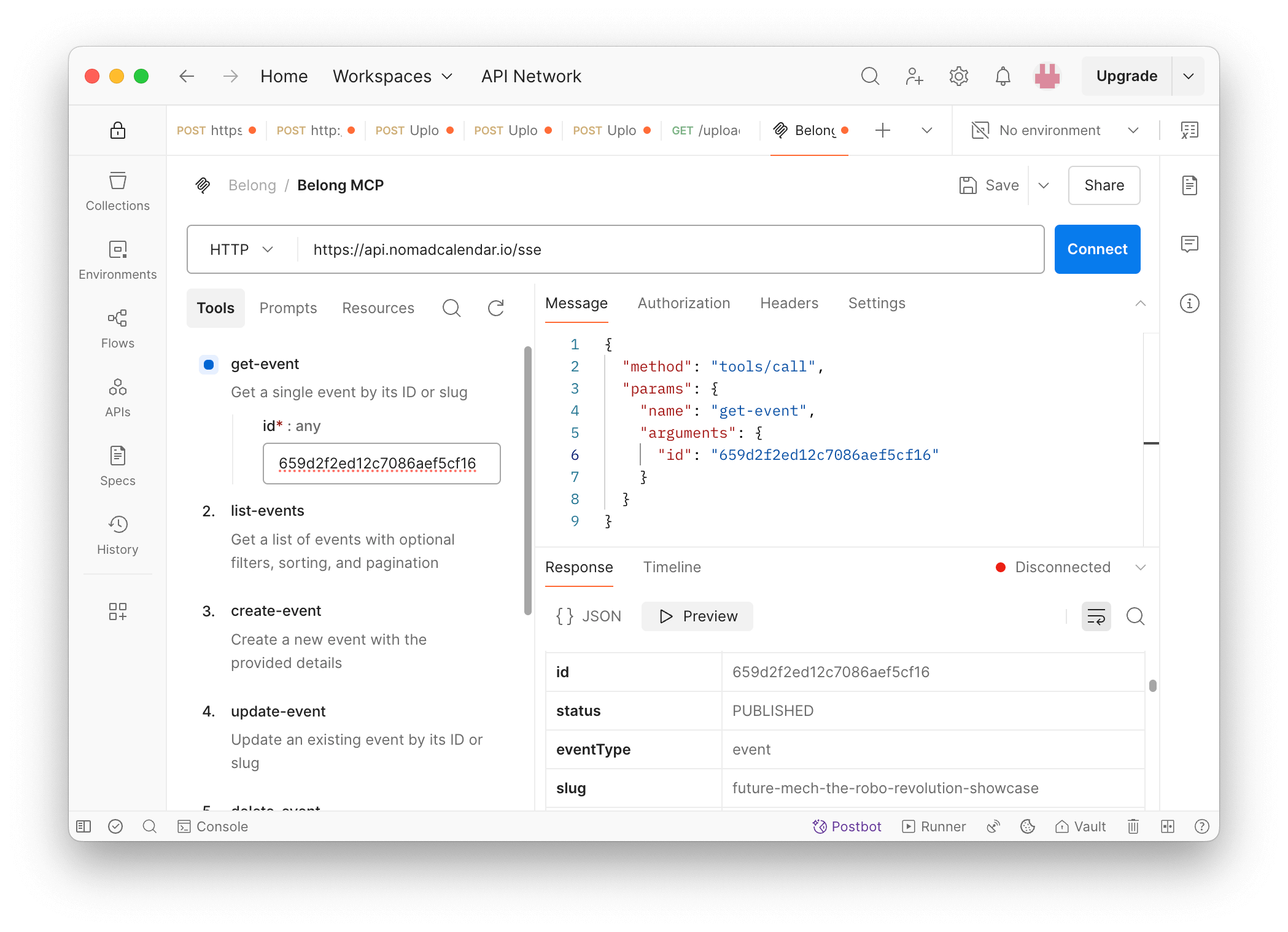
- Open Postman
- Click
Add→ SelectMCP - Enter the backend MCP server URL:
https://api.belong.net/mcp - Go to the
Headerssection and addx-api-keywith your API key value
What You Can Do
Once connected, you can ask your AI assistant questions like:
- "Show me all my upcoming events"
- "What's the current value of my tokens?"
- "Create a new event for next Friday"
- "List all my venues"
The AI will interact with your Belong account directly through the MCP connection, making it easy to manage your events and tokens without switching between applications.
Need Help?
If you encounter any issues, refer to the Claude Desktop quickstart guide for detailed integration steps, or contact our support team.